
Wake-on-LAN
Wake-on-LAN lets you power on your PC remotely from ChillShell. Download the Chill app to set up everything in three clicks, or follow the steps below for manual configuration.
Important: Wake-on-LAN only works on the local network via Ethernet cable. WiFi is not supported.
1. Enable in BIOS
See the BIOS Setup tutorial to enable the required settings. BIOS Setup →
2. Enable in Windows
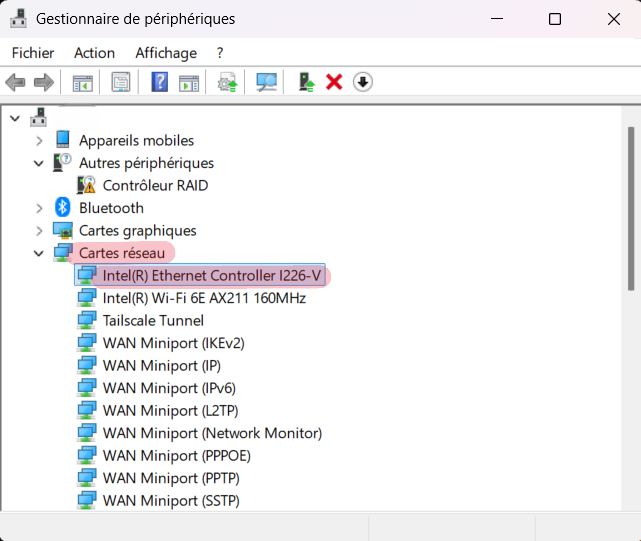
Open Device Manager and find your Ethernet adapter under Network adapters.
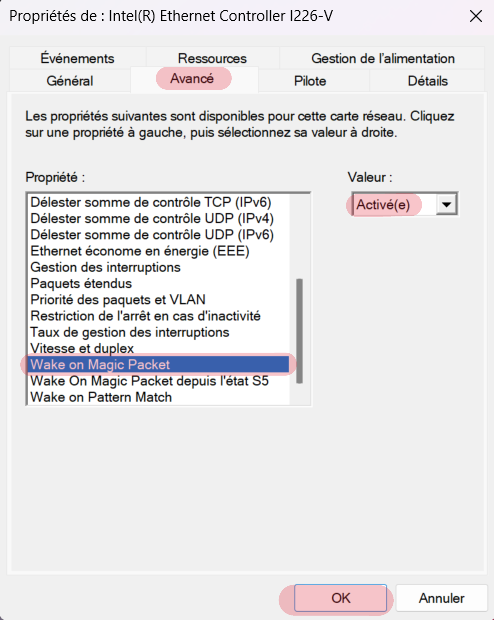
Advanced tab: Wake on Magic Packet
Right-click your Ethernet adapter > Properties > Advanced tab. Find "Wake on Magic Packet" and set it to Enabled.
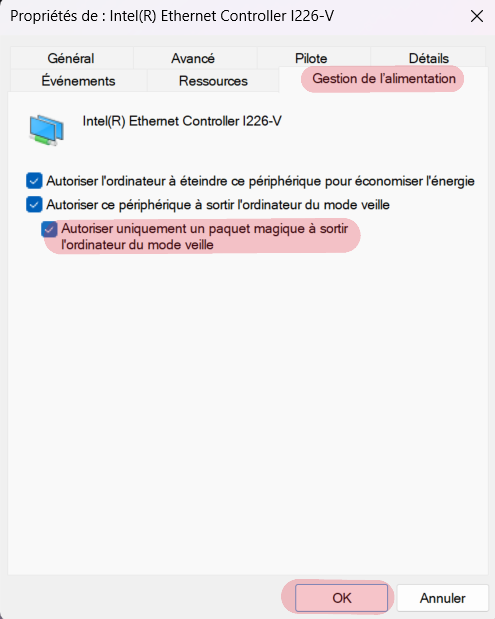
Power Management tab
Go to the Power Management tab. Check "Allow this device to wake the computer" and "Only allow a magic packet to wake the computer".
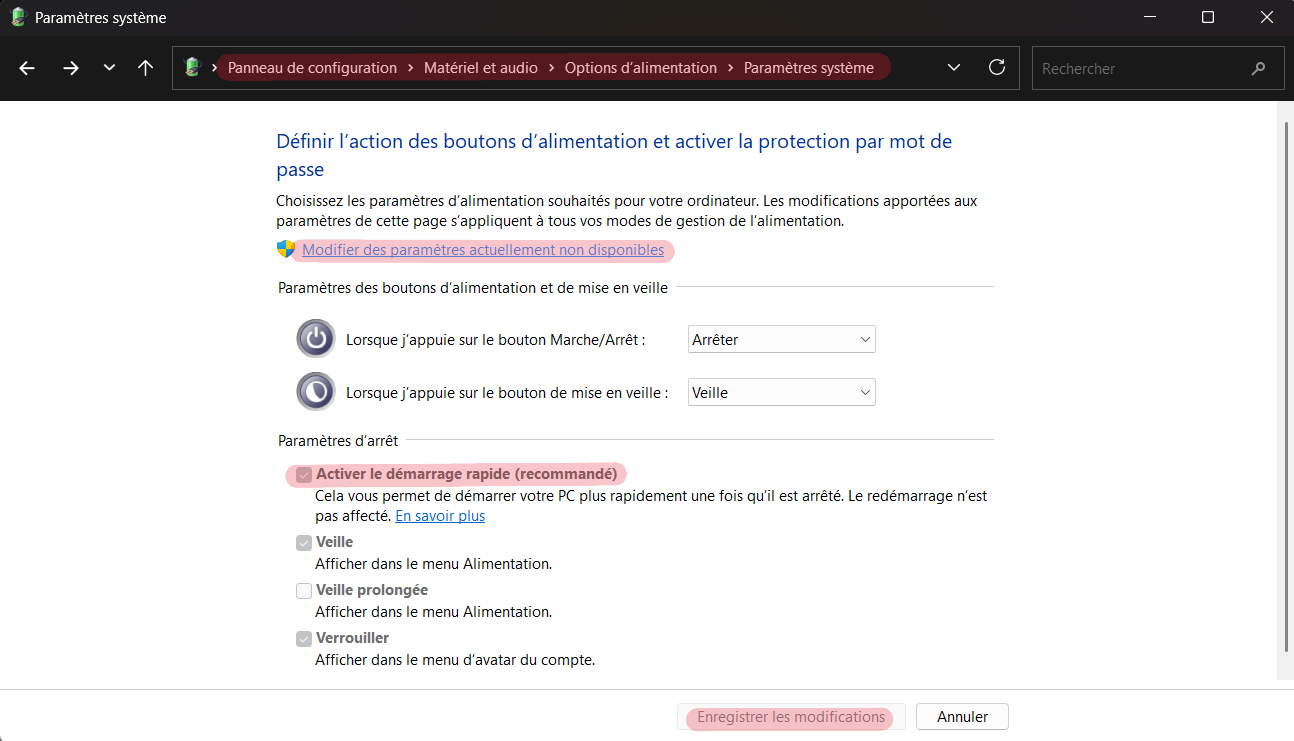
Disable Fast Startup
Fast Startup can prevent Wake-on-LAN from working. To disable it: Control Panel > Hardware and Sound > Power Options > Choose what the power buttons do > Change settings that are currently unavailable > Uncheck "Turn on fast startup".
3. Configure in ChillShell
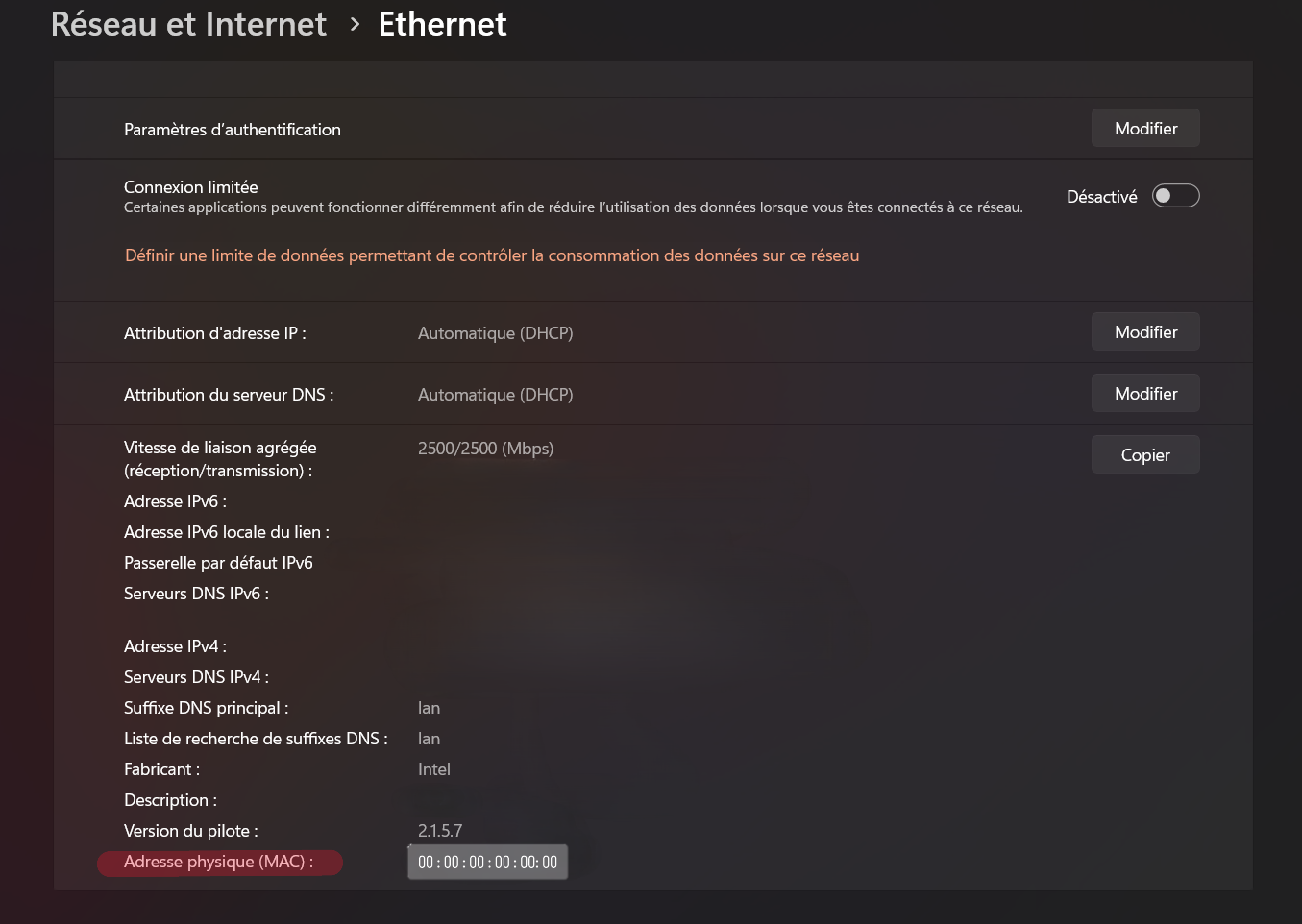
In ChillShell settings, add your PC's MAC address. You can find it with:
Open Settings > Network & Internet > Ethernet. Scroll down to find your physical (MAC) address.
Troubleshooting checklist
How Wake-on-LAN works
Wake-on-LAN (WoL) is a networking standard that allows you to power on a computer remotely by sending a special network packet called a "magic packet." The magic packet contains the target machine's MAC address repeated 16 times, which the network adapter recognizes even when the PC is powered off.
For WoL to work, three conditions must be met: the BIOS must support and enable WoL, the operating system must configure the network adapter to listen for magic packets, and the PC must be connected via Ethernet cable (WiFi adapters power off completely when the PC shuts down).
< 10 sec
Boot time after magic packet
102 bytes
Magic packet size
Ethernet
Required connection
Good to know
- Wake-on-LAN works on your local network. To wake your PC from anywhere in the world, combine WoL with Tailscale VPN.
- Fast Startup on Windows can prevent WoL from working because it puts the PC in a hybrid shutdown state. Always disable it.
- Your MAC address never changes — you only need to configure it once in ChillShell.
HUYNH Kevin
Creator of Chill